3D Modeling App: Sculpt & Draw
- 4.1
- Rating
- 10.00M
- Installs
- Free
- Price

 Analysis by App-foxy
I approached 3D Modeling App: Sculpt & Draw as a practical mobile art tool rather than a replacement for a full desktop 3D package. It is an Android app in the Art & Design category from 3D Modeling Apps, built around making, shaping, and painting three-dimensional objects on a phone or tablet. After spending time with it, I found the main appeal is clear: it lowers the barrier between having a rough idea and turning that idea into a simple 3D form.
The app is free to install, carries an Everyone age rating, and works on devices running Android 6.0 or later. Its current version is 1.20.11, and its popularity is easy to understand: it has passed ten million installs and holds a 4.3 average from around fourteen thousand ratings. Those figures do not make it automatically right for everyone, but they do suggest that this is not an obscure experiment. It is a widely used mobile modeling option with a more approachable feel than many professional tools.
What the mobile modeling workflow feels like
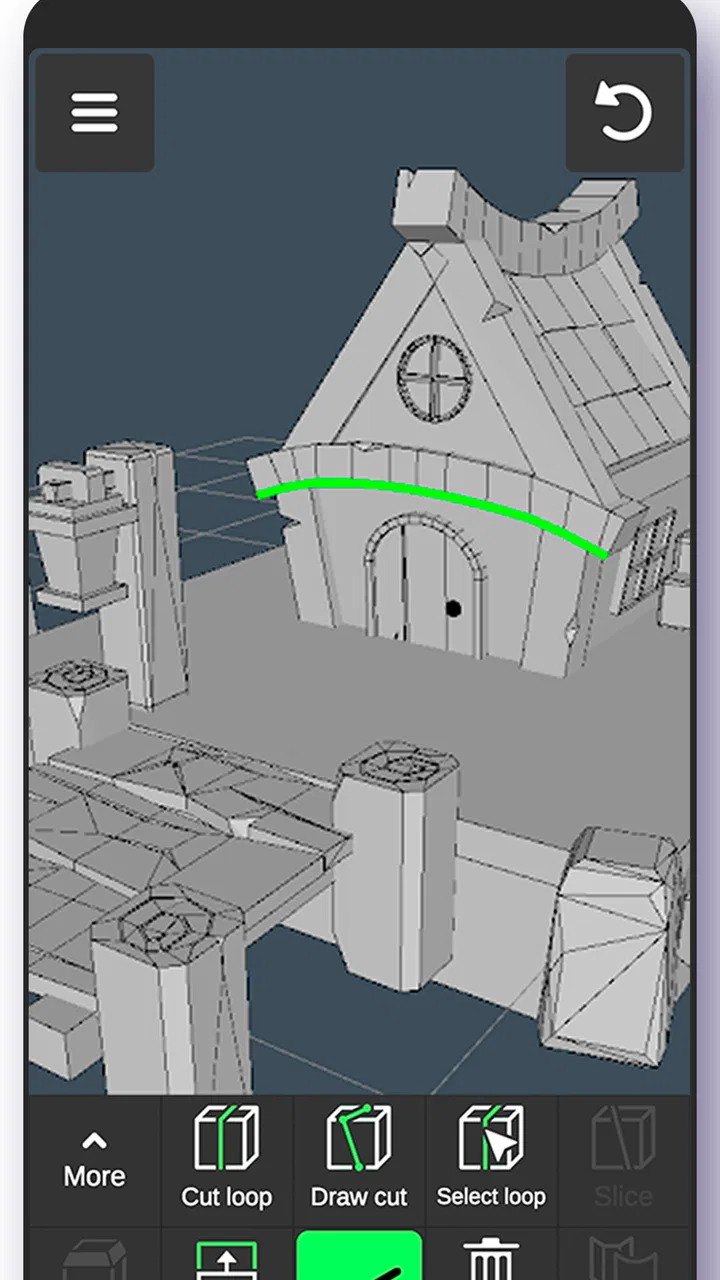
The first thing I noticed is that the experience is centered on direct manipulation. Instead of beginning with a complicated professional interface full of technical panels, I could focus on the object itself, its shape, and the marks I wanted to make. That makes the app inviting for beginners who want to understand basic 3D form without first learning an entire production pipeline.
You May Also Like

 Pandora - Music & Podcasts
Pandora’s Music Is Easy to Start, but Harder to Recover
Pandora’s strength is its low-effort path from a seed to a station. Its weak spot is how much confidence it asks you to place in connection, setup, and quiet recovery.

 8 Ball Pool
 Is Built on Rivalries, Rematches, and Routine
A close look at the rivalries, rematches, shared routines, and unanswered safety questions that turn a quick pool match into a persistent mobile community.

 Samsung Music
’s Quiet Strength Is Playing What You Already Own
Its reach comes less from spectacle than from dependable access to a personal library. That simplicity is both the app’s strongest retention engine and its ceiling.

 AccuWeather: Weather Radar
AccuWeather Review: A Quick, Clear Forecast for Everyday Decisions
For everyday plans, the best forecast is the one you can understand quickly. AccuWeather makes rain timing, radar, and local conditions easy to act on, with a few trade-offs.

 Hill Climb Racing
Why Hill Climb Racing Still Turns Crashes Into One More Run
A tiny car, a bumpy hill and one more upgrade: Hill Climb Racing keeps resurfacing because its simple chaos makes every near-miss feel personal.

 AliExpress - Shopping App
AliExpress Makes Global Shopping Feel Personal, but Shoppers Bear the Risk
AliExpress turns a global marketplace into a pocket-sized discovery engine. Its reach is useful, its shopping loop compelling, and its trade-offs easy to miss.
More From Our News Desk
View All News


The combination of modeling, sculpting, and painting gives it more range than a simple sketching app. I can imagine using it to block out a character, test the silhouette of a small prop, experiment with a decorative object, or create a visual reference before moving to more advanced software. The important distinction is that this is best understood as a creation space for ideas and practice, not necessarily the final destination for every serious 3D project.
On a phone, the screen becomes both canvas and control surface. That is convenient, but it also means that precision depends heavily on the size and responsiveness of the device. A tablet gives the forms more room and makes detailed work less cramped. On a smaller phone, I would keep the early stages broad and simple, then zoom in only when the shape is already working.
The strongest use of this app is fast visual thinking: I can test proportions, colors, and basic volumes without setting up a workstation. That makes it useful for students, hobby artists, product-idea sketches, and anyone who wants to practice seeing objects as forms rather than flat outlines.
Where connectivity enters the experience
Although the creative act itself feels personal and screen-based, the surrounding experience is still shaped by connectivity. Installing the app, receiving its updates, and handling any store-related transactions naturally depend on access to the relevant online services. I would not treat a network connection as irrelevant simply because the main activity is drawing or sculpting.
This matters most when I am trying to start quickly. If I am on a train, in a waiting room, or away from a reliable connection, I prefer to prepare the app and any required updates beforehand. That removes one possible interruption before I begin a modeling session. It is a small habit, but it makes mobile creativity feel much less fragile.
I also avoid assuming that every surrounding service will behave the same way in every network condition. Store access, account checks, purchases, updates, and other connected actions can be separate from the act of shaping an object. Because of that, I plan important work with a little margin instead of beginning a time-sensitive project at the exact moment I need everything to respond perfectly.
For a casual session, this is not a major burden. For a creator who expects a completely self-contained tool that never needs online interaction, it is worth thinking about the difference between using a creative canvas and managing an app installed through a connected ecosystem.
How it fits into real mobile situations
A realistic example is a student waiting between classes with an idea for a small game character. Rather than opening a full computer program, the student can use the spare time to establish the character’s body shape, test a color direction, and decide whether the silhouette reads clearly. Even if the result later needs refinement elsewhere, that short session can answer the most important early question: does the idea work visually?
I see a similar benefit for someone who designs handmade objects or decorations. A rough three-dimensional mock-up can help compare a rounded version with a more angular one before materials are purchased. The app does not need to replace the physical making process to be useful; it can function as a low-pressure planning tool.
On a phone, I would use it for short bursts rather than expecting a long, perfectly controlled studio session. Holding a device for an extended modeling task can become tiring, and fingers cover part of the artwork while working. A tablet, a stand, or a stylus-compatible setup may make the experience more comfortable, but I would still judge the app primarily as a mobile-first tool.
One practical workflow is to begin with a silhouette instead of details. I first decide whether the object looks right from a distance, then work toward surface treatment and color. This prevents a common beginner mistake: spending time painting an attractive surface on a form whose proportions are not convincing. The app’s sculpting and painting combination makes that order especially useful.
Small decisions that improve the results
I found that simple forms benefit from restraint. When I am learning a mobile modeling interface, it is tempting to keep adjusting every visible area. That often produces a lumpy result and makes it harder to understand which change actually helped. I prefer making one broad adjustment at a time, rotating the model, and checking the silhouette before continuing.
A second useful habit is to separate shape decisions from color decisions. Color can make a model feel finished before the structure is ready, which is distracting when I am still trying to solve the proportions. I get a clearer result by treating paint as a later pass, even though the app allows both kinds of work in the same creative environment.
A third insight is that mobile modeling is excellent for comparison. I can create one rough version with a tall profile and another with a wider profile, then decide which communicates the idea better. That is more valuable than trying to make the first attempt perfect. The app encourages iteration because the cost of testing a visual direction is low.
These habits also reduce the pressure caused by a small screen. Instead of demanding microscopic control from the beginning, I use broad, readable changes and reserve precision for areas that genuinely affect the design. That approach makes the app feel more capable and less frustrating.
What happens when a session is interrupted
Mobile work is vulnerable to interruptions. A call, a low battery warning, an app switch, or an unstable connection can break concentration at exactly the wrong moment. I therefore treat recovery as part of my workflow rather than something to consider only after a problem appears.
Before making a complicated change, I pause to look at the overall model. If the next adjustment is experimental, I avoid stacking several uncertain changes together. That way, if I need to stop, I still know what the last meaningful decision was. This is not a glamorous technique, but it makes it easier to return to a project without feeling lost.
I also recommend leaving enough time to finish a natural stopping point. Ending immediately after a major transformation can make the next session confusing, especially when the model has changed dramatically. A quick review of the silhouette and painted areas gives me a clearer starting point later.
Connectivity can add another layer to failure and recovery. If an online action is interrupted, I do not repeatedly tap through the same step without checking what happened. I first confirm whether the app is still responsive, whether the store interaction completed, and whether the connection has returned. Repeating a purchase or update action impulsively is a poor recovery strategy in any mobile app, particularly when optional purchases range from ninety-nine cents to thirty-four dollars and ninety-nine cents per item.
The free entry point is helpful because I can explore the basic experience before deciding whether any optional spending makes sense. I would keep that decision separate from the creative process. If I am enjoying modeling, that does not automatically mean I need every available addition. Trying the workflow first is the sensible approach.
Using it carefully when data is limited
For people managing a limited mobile data plan, the safest routine is to handle installation and updates when connected to a trusted Wi-Fi network. That is ordinary advice, but it is especially useful here because creative sessions can be spontaneous. Preparing the app in advance means I am not forced to spend data before I can even begin.
I also avoid treating a network indicator as proof that every connected action will complete smoothly. A weak signal can be enough for browsing but unreliable for an update or store transaction. When I am working with a limited connection, I prefer to postpone nonessential account or purchase actions until the connection is stable.
There is a useful distinction between data-conscious use and avoiding the app entirely. I can still plan a modeling session, sketch the object’s proportions mentally, and work through a series of visual experiments without constantly checking online services. The key is to separate preparation, creative work, and connected maintenance instead of mixing them into one rushed session.
Privacy-conscious users may also appreciate a measured approach: install from the official app source, review the system prompts shown during setup, and keep the app updated through the normal store process. I would not make assumptions about permissions or background behavior beyond what the device presents. Good mobile habits are more reliable than guessing.
How it compares with familiar alternatives
Compared with a traditional desktop 3D suite, this app is easier to approach but less suited to highly technical production. Desktop tools generally offer more room for detailed control, more elaborate workflows, and better support for large projects. If I needed advanced animation, complex scene management, or a professional asset pipeline, I would choose a computer-based application instead.
Compared with a basic 2D drawing app, this one gives me a better way to think about volume, rotation, and surface placement. A flat sketch is often faster for brainstorming, but it cannot show how an object reads from different angles. The three-dimensional workspace earns its place when the form matters as much as the outline.
It also occupies an interesting middle ground beside specialized sculpting apps. A dedicated sculpting tool may provide a deeper set of controls for users who already understand digital clay workflows. Here, the broader combination of modeling and painting feels more approachable for someone who wants to explore rather than commit to one narrow technique.
The trade-off is control versus immediacy. I would choose this app when speed, portability, and a gentle learning curve matter more than exhaustive technical options. I would skip it as my main tool if I already depend on desktop-grade precision or need a carefully managed professional pipeline.
Who will enjoy it, and who should look elsewhere
Beginners are the obvious audience, but I think the app is also valuable for experienced artists during the idea stage. A professional may not use it for final production, yet a quick mobile blockout can still clarify a shape before returning to a larger tool. The low commitment makes experimentation easier.
It is a good fit for learners who want to understand how a painted surface sits on a form, for hobbyists making simple visual objects, and for creators who regularly get ideas away from a desk. The Everyone rating also makes it broadly approachable for households and classrooms, although the quality of the result will still depend on patience and practice.
I would be cautious about recommending it to someone who dislikes touch controls, needs exact technical measurements, or expects every mobile project to transfer directly into a professional workflow. I would also steer a serious production artist toward a more specialized alternative if the task involves complex scenes rather than individual forms and visual studies.
The developer, 3D Modeling Apps, has positioned the product around accessible three-dimensional creation rather than an intimidating specialist environment. In my experience, that focus is the app’s identity. It succeeds when I use it for exploration, learning, and quick visual decisions; it becomes less convincing when I ask it to behave like a complete desktop studio.
My overall connectivity verdict
Connectivity does not define the creative pleasure of sculpting and painting, but it does influence how smoothly the surrounding experience fits into mobile life. I get the best results when I prepare installation and updates ahead of time, avoid rushed connected actions, and treat short creative sessions as self-contained periods of concentration.
The app’s free price makes experimentation easy, while optional purchases mean I still pay attention before confirming anything. Its broad device compatibility, approachable focus, and large install base make it an easy recommendation for people curious about mobile 3D art. I would simply set expectations correctly: this is a convenient place to build and test ideas, not a guaranteed substitute for a full professional package.
My final recommendation is positive for beginners, casual creators, students, and artists who want a portable modeling sketchbook. I would recommend using a larger screen when possible, starting with silhouettes, delaying paint until the form works, and keeping important connected tasks for a stable network. If you want an approachable way to turn spare minutes into three-dimensional experiments, this app is worth trying; if you need rigorous production control, choose a specialized desktop tool instead.
FAQs for 3D Modeling App: Sculpt & Draw
01What features does the 3D Modeling App: Sculpt & Draw offer?
The 3D Modeling App: Sculpt & Draw provides a comprehensive set of tools for creating detailed 3D models. Features include intuitive sculpting tools, texture painting, and a vast library of customizable brushes. It supports multi-resolution sculpting and allows seamless integration with other design software. Additionally, the app offers real-time rendering and export options for various file formats.
02Is the 3D Modeling App suitable for beginners?
Yes, the 3D Modeling App: Sculpt & Draw is designed to cater to both beginners and experienced artists. It includes a user-friendly interface with tutorials and guides to help newcomers get started. Advanced features are available for professionals, but the app’s simplicity ensures that even those new to 3D modeling can create impressive designs effortlessly.
03What platforms is the app available on?
The 3D Modeling App: Sculpt & Draw is available for both Android and iOS devices. It is optimized for tablets and smartphones, ensuring a smooth experience across various screen sizes. Regular updates ensure compatibility with the latest operating systems, providing users with the best performance and new features over time.
04Does the app require an internet connection to function?
No, the 3D Modeling App: Sculpt & Draw does not require an internet connection for its core functionalities. Users can create and edit models offline. However, an internet connection is necessary for accessing cloud storage options, downloading updates, and if you wish to sync your projects across multiple devices.
05Are there any in-app purchases or subscription fees?
The 3D Modeling App: Sculpt & Draw offers a free version with basic features. For access to an expanded toolset and premium content, users can opt for in-app purchases or a subscription plan. The app provides a detailed breakdown of its pricing structure, allowing users to choose the option that best suits their needs and budget.
Pros
- Intuitive interface for beginners
- Wide range of sculpting tools
- Supports multiple file formats
- Responsive customer support
- Regular updates with new features
Cons
- Occasional crashes on complex projects
- Limited export resolution options
- High learning curve for advanced tools
- In-app purchases for premium features
- Requires a high-performance device

3D Modeling App: Sculpt & Draw
Gallery